
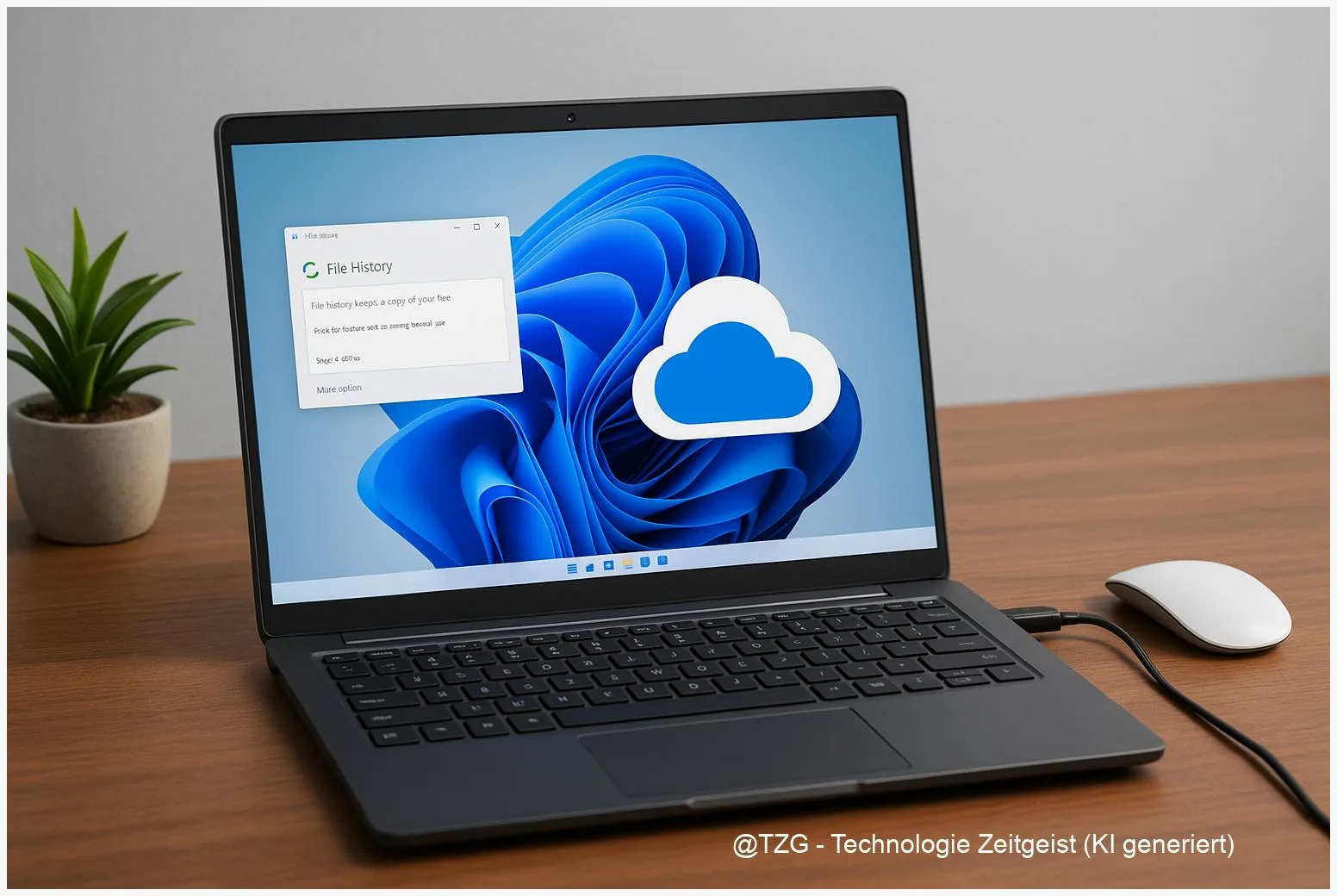
A lost laptop, a broken SSD, or one wrong click can wipe out important files. This guide shows how to set up a Windows 11 Backup that covers both everyday mistakes and hardware failure: local versioned copies with File History and cloud protection with OneDrive folder backup. After these steps, your Desktop and Documents can be protected automatically, and you will know exactly how to restore older versions when something goes wrong.
Introduction
Most people do not lose data because of “hackers” or dramatic disasters. It is usually a small, everyday moment: you overwrite a school paper with the wrong draft, your phone cable catches your external drive, or a Windows update coincides with a failing SSD. The frustrating part is not only the lost file, but also the time spent trying to rebuild it.
Windows 11 offers two practical ways to reduce that risk without turning your PC into an IT project. File History creates local copies and keeps older versions, so you can roll back changes. OneDrive folder backup (also called “PC folder backup” or “known folder backup”) keeps important folders in the cloud, so your files can follow you to a new device.
The best results come from combining both: OneDrive for “my device is gone” scenarios, and File History for “I need yesterday’s version” moments.
Basics and Overview: What Windows 11 Backup actually means
For personal files, “backup” is not one single feature in Windows 11. Think in layers. One layer keeps copies somewhere else (cloud or external drive). Another layer keeps versions, so you can undo changes. In this tutorial, you set up two built-in options that cover these layers without special software.
File History is a Windows feature that automatically saves copies of files from common folders (libraries) to an external drive or network location. It is designed for day-to-day protection and makes it easy to restore previous versions.
OneDrive folder backup stores your key folders in Microsoft’s cloud via the OneDrive sync app. In practice, that means files in Desktop, Documents, and Pictures (and sometimes more, depending on settings) are synced and available on other devices after sign-in.
A reliable setup is not “cloud or external drive” — it is cloud and local versions, so you can handle both device loss and accidental edits.
If you also want deeper Windows recovery (settings, app list, and more), Windows Backup can help, but it is not a full system image. In this guide, the focus stays on what most people care about most: personal files and fast recovery.
| Option or Variant | Description | Suitable for |
|---|---|---|
| File History (external drive) | Automatic local copies with versioning; restore older file versions from an external drive. | Accidental deletion, overwritten files, quick offline restores. |
| OneDrive folder backup | Syncs key folders to the cloud; files are available after sign-in on a new PC. | Device loss, moving to a new PC, access from multiple devices. |
Preparation and Prerequisites
A smooth backup setup starts with two checks: where your files currently live, and whether you have stable storage for backups. Plan for both File History (external) and OneDrive (cloud). If you only do one, you still improve safety, but you lose a layer of protection.
Before you begin, make sure the following is ready:
- External storage for File History: a USB hard drive or SSD with enough free space for your personal files (more space means you can keep versions longer).
- OneDrive sign-in: a Microsoft account signed into OneDrive on the PC. Check the OneDrive cloud icon in the Windows notification area (near the clock).
- Internet access: for the first OneDrive upload, a stable connection helps, especially if Pictures or Videos are large.
- Know your important folders: many people save files in Downloads or custom folders. Decide whether these should be added to a library (for File History) or moved into a OneDrive-backed folder.
- Time for a first run: the initial backup/sync can take a while. It runs in the background, but it is best to start when you do not need to unplug the drive or shut down immediately.
If you want to read more about everyday file organization before backing up, TechZeitGeist has helpful context on digital routines and practical PC workflows. (No direct matching internal tutorial could be reliably verified during research.)
Step-by-Step Instruction
The steps below create a dual setup: OneDrive protects your main folders in the cloud, and File History creates local versions on an external drive. Do them in this order so you can immediately see what goes where.
- Turn on OneDrive folder backup: Click the OneDrive cloud icon in the notification area. Open Settings (sometimes under a gear icon). Go to Sync and backup and select Manage backup.
- Select folders to protect: Enable the toggles for Desktop, Documents, and Pictures (what is offered depends on your setup). Confirm with Start backup. Leave the PC on so the first sync can finish.
- Verify the result in File Explorer: Open File Explorer and check your OneDrive folder in the left navigation. You should see your protected folders there. If files are still uploading, the OneDrive icon will show activity.
- Connect the external drive for File History: Plug in your USB drive. If it is new, Windows may ask to set it up. Keep it connected for the initial backup.
- Open File History: Use Windows Search and type File History. Open the classic Control Panel entry that relates to saving copies of your files with File History.
- Select the backup drive and turn File History on: Choose Select drive if needed, pick the external drive, then click Turn on. File History will start capturing copies automatically.
- (Optional) Include additional folders: File History mainly protects libraries. If you have important folders outside the defaults, add them to a library in File Explorer (right-click the folder and look for an option to include it in a library). This way, File History can pick it up.
- Test a restore so you trust the setup: Pick a small text file in Documents, make a change, wait for File History to run, then right-click the file or folder and look for Restore previous versions. For OneDrive, you can also use version history in OneDrive-supported apps or via OneDrive’s version history feature.
If everything worked, you now have two safety nets: OneDrive syncing for the most important folders and File History storing older versions on your external drive. The biggest win is psychological: you can update, edit, and clean up files with far less anxiety.
Tips, Troubleshooting, and Variants
If backups fail, it is usually because a drive is missing, storage is full, or files are not actually inside protected folders. The fixes below cover the most common stumbling blocks on Windows 11.
OneDrive folder backup issues:
- Upload stuck or slow: Pause and resume sync from the OneDrive icon, and keep the PC awake. Large photo folders can take hours on slow connections.
- Not enough OneDrive space: Backup will stop if the cloud storage is full. Clean up large folders or adjust which content is stored. (Windows Backup and OneDrive depend on available OneDrive storage.)
- Path and name problems: Very long paths or unusual characters can cause sync errors. Shorten folder names if you see repeated warnings.
File History issues:
- “Reconnect your drive” message: This appears when the external drive was unplugged. Reconnect it and run File History again.
- Nothing gets backed up: Confirm File History is turned on and that your files are in included libraries. If you store everything in Downloads, consider moving key files into Documents (and, ideally, into OneDrive-backed folders).
- Too many versions / drive fills up: Use File History’s advanced settings to reduce how long versions are kept, or switch to a larger drive.
Useful variant for many households: Keep OneDrive folder backup always on, and plug in the File History drive once per week (or after big changes) to refresh local versions. This still protects you from accidental edits, while reducing wear on portable drives.
Privacy note: Cloud backup means your files are stored online with your account. Use a strong password and enable multi-factor authentication (a second sign-in step, usually via an app) on your Microsoft account to reduce account takeover risk.
Conclusion
A good Windows 11 Backup does not have to be complicated. OneDrive folder backup protects the files you use every day and makes moving to a new PC far less stressful. File History adds something cloud sync alone cannot replace: quick, local version restores when you overwrite, break, or delete a file. Once both are running, your most important folders are covered automatically, and recovery becomes a normal, predictable routine instead of a panic moment.
Try the setup today, then test one restore on purpose. If you found a smoother workflow (or hit a snag), share your experience so others can copy what works.




Leave a Reply